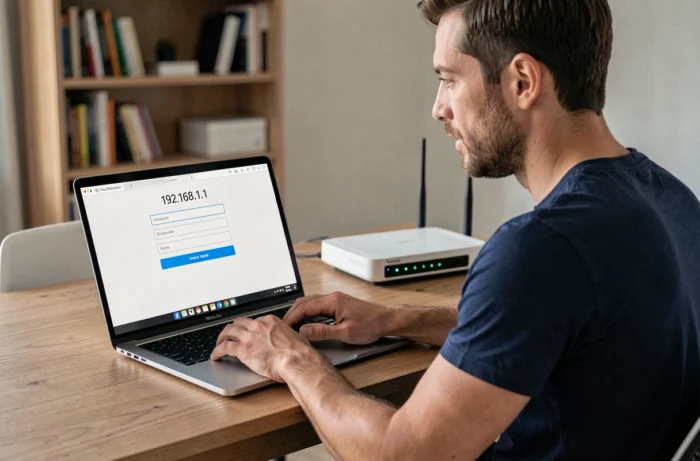
Typing 192.168.l.l in the address bar of a browser is the most common reflex to access the administration interface of a router or internet box. The problem is that this character sequence hides a frequent confusion between the lowercase letter “l” and the number “1”, which completely prevents the connection.
This article details the actual addresses used by major manufacturers and providers, the connection protocols, and the concrete blocking points that classic guides do not address.
Administration address by manufacturer and ISP: comparison table
The IP address for accessing the administration interface varies by hardware. Guides that focus solely on 192.168.1.1 miss a more fragmented reality.
| Manufacturer / ISP | Default IP Address | Alternative Hostname |
|---|---|---|
| Orange (Livebox) | 192.168.1.1 | – |
| Bouygues (Bbox) | 192.168.1.254 | mabbox.bytel.fr |
| SFR (Box) | 192.168.1.1 | – |
| TP-Link | 192.168.0.1 or 192.168.1.1 | tplinkwifi.net |
The address 192.168.1.1 only covers part of the equipment. Some boxes respond on 192.168.1.254. Testing multiple addresses or using the manufacturer’s hostname remains the most reliable method.
For those who want to access 192.168.l.l with Techronix, a detailed guide covers the procedures specific to each router brand.
HTTP or HTTPS: which protocol to access your router
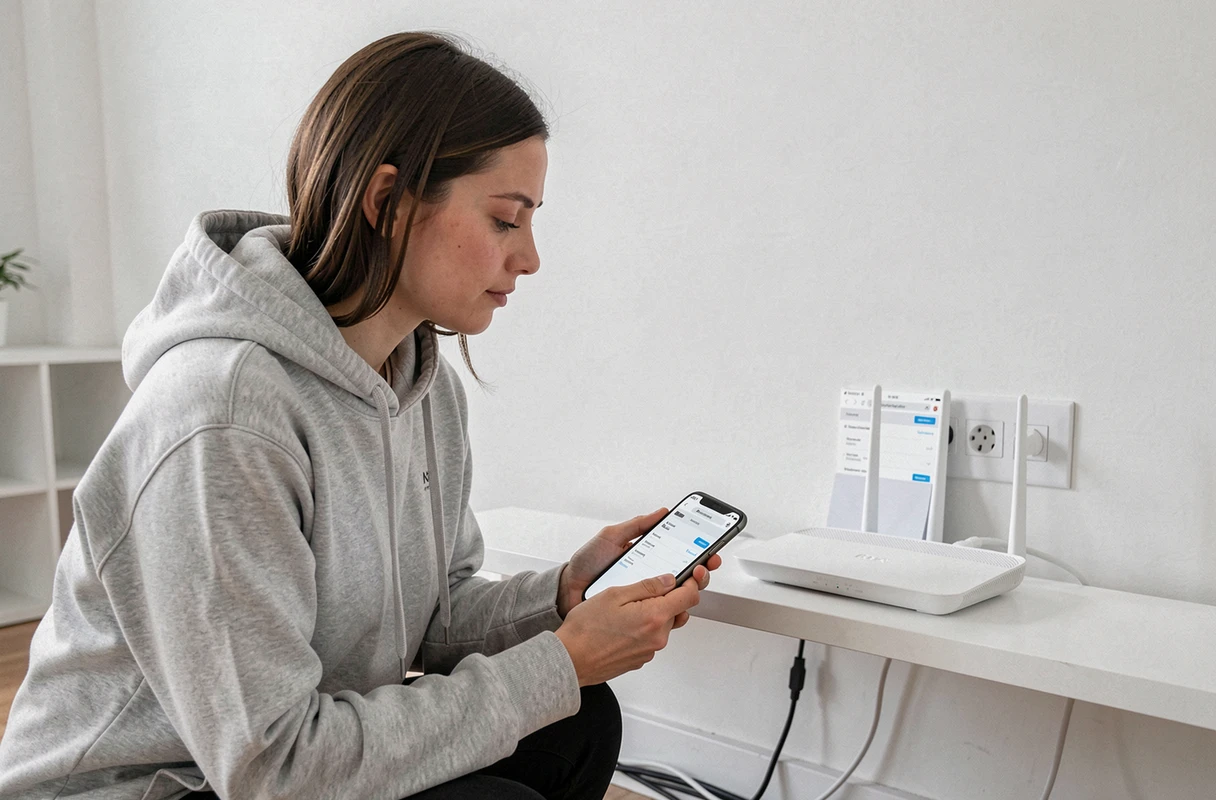
The majority of consumer guides recommend typing http://192.168.1.1 in the browser. This approach works, but it masks a recent evolution: some recent routers require a connection via HTTPS. If the page does not load in HTTP, testing https://192.168.1.1 may resolve the issue without further manipulation.
The browser will likely display a security warning related to the router’s self-signed certificate. This behavior is normal on a local network. Simply accept the exception to access the interface.
However, if neither HTTP nor HTTPS works, the problem lies upstream: incorrect IP address, faulty network cable, or device connected to a Wi-Fi network different from that of the targeted router.
Confusion between 192.168.l.l and 192.168.1.1: why the page does not display
The query “192.168.l.l” is one of the most frequent on search engines related to network configuration. The browser interprets the letters “l” as text, not as numbers, and launches a web search instead of opening a local IP address.
An IP address contains only numbers and dots. The correct sequence is 192.168.1.1 (with the number one, two times). On some keyboards and display fonts, the distinction between lowercase “l” and “1” is nearly invisible.
To avoid this error:
- Use the numeric keypad on the keyboard, which only produces numbers
- Copy-paste the address from a reliable document rather than typing it manually
- Use the manufacturer’s hostname (tplinkwifi.net for example) when available, which eliminates any risk of a typo in the IP
Default credentials and custom password: what has changed
Older network guides systematically recommend the combination admin/admin or admin/password to log into the router’s interface. This information is becoming less reliable.
Recent TP-Link routers require creating a custom password during the initial setup. There is no longer a fixed default username. If the password has been set and then forgotten, the only option is the physical reset of the router (a recessed button to be held down for several seconds).
French ISP boxes operate differently. On an Orange Livebox, the access credentials to the local interface are often printed on a label stuck under the device. On a Freebox, access is through the Free account and a password set during activation.
- Orange Livebox: credentials on the physical label of the box
- Freebox: password set via the Free subscriber area
- Bbox Bouygues: credentials on the label or via the customer area
- Third-party routers (TP-Link and others): password created at first connection or default credentials documented in the manual
Troubleshooting on smartphone: disable mobile data
Accessing a router’s interface from a smartphone poses a specific problem that PC-oriented guides do not mention. The phone may ignore the local address and switch to the mobile network if cellular data remains active.
The solution: disable mobile data before typing the address in the browser. The smartphone will then use only the Wi-Fi connection, and the address 192.168.1.1 (or the address corresponding to your equipment) will correctly point to the local router.
Another point to check: some mobile browsers automatically add “www.” or redirect IP addresses to a search engine. Typing the full address with the http:// prefix (for example http://192.168.1.1) forces the browser to treat the input as a URL and not as a search.
Configuring a router requires neither advanced networking skills nor special software. The main obstacle remains identifying the correct address and credentials. Checking the physical label of the device, verifying the HTTP or HTTPS protocol, and distinguishing the number 1 from the letter l cover the vast majority of blocking cases.